4/28/2006

Robo Form 6.7.0 with FireFox improvements

Robo Form 6.7.0 was released today. Seems that this update contains improvements for those that use the FireFox browser only. You can download it here: Robo Form 6.7.0
If you're using Pass 2 Go, you can get the latest release here: Pass 2 Go 6.7.0
Here is what's changed in this version:

  1. In version 6.6.9 they've included a highlight button when using the search function, now this button also appears in the toolbar in FireFox. Pressing it the first time highlights the search term on the page, pressing it the second time removes the highlight (duhh). Note that all the changes in this update require that you also install the Robo Form Adapter 6.6.8 for FireFox.
    highlight button in Firefox for Robo Form

  2. The Robo Form toolbar in Firefox integrates better in the browser. If you've used FireFox in conjunction with Robo Form in the past, you've seen that sometimes the Robo Form toolbar loaded with a delay. Now that's not happening. Plus that the toolbar now seems perfectly attached to FireFox.
    Robo Form toolbar in FireFox

  3. The last change refers to the toolbar too. Now when you change the theme of FireFox, the color of the Robo Form toolbar also changes. This is nice, just look how it looks using the Noia theme for FireFox:
    Theme color change for Robo Form toolbar in FireFox


This is all I've spotted in this update. Don't forget to give Robo Form 6.7.0 a try if you didn't do so yet.

4/15/2006

Robo Form 6.6.9 is out with highlighting and multiple selection

Robo Form 6.6.9 was released, you can download it directly from here (direct download, about 2MB): Robo Form 6.6.9. If you're using Pass 2 Go, you can get the latest release here: Pass 2 Go 6.6.9.

So what big news are for this release? Not too many, but nice ones (especially that multiple selection):

  1. Robo Form has now a Highlight button on the toolbar, that lets you highlight search words on the results page. Pressing it the first time highlights them, pressing it the second time removes the highlight

    Robo form highlight toolbar button

  2. You can select multiple Passcards, Identities or Safenotes and email them all (until now you could only email one at a time). The method is simple, you can select multiple ones by holding the Ctrl key pressed, and select them with a mouse click.

    Multiple safenotes selection and email in Robo Form

  3. You can select multiple Passcards, Identities or Safenotes and Print them all (until now you could only print one at a time or the entire list).

    Multiple safenotes selection and print in Robo Form

  4. You can select multiple Passcards/Bookmarks and open all the pages in your browser using the Go To function. Note that this will not fill and submit, only open those pages.

    Multiple pages opened with Robo Form Goto


Don't forget to give Robo Form 6.6.9 a try if you didn't do so yet.

4/04/2006

Robo Form 6.6.8 released

Robo Form 6.6.8 was released, but it does not contain lots of changes, only some bug fixes as their news states: Fix problems in IE7 beta 2 + Pass2Go.

I didn't know about this problem since I don't use IE7 (yet), but I'm sure that this is helpful for those that do. Interesting to note is that Robo Form 6.6.8 was released on March 31 and IE7 beta 2 was released on March 20. Every app has its bugs, but they're fixing them fast. This is good, one more reason to love Robo Form.

Of course they don't do this for free, and interesting is the fact that their search function returns results from engines like Yahoo, Google, MSN and other big players.
robo form search option
This business model is common among browsers, as they have partnerships with search engines to receive a portion of the cost-per-click. Is the same thing with Robo Form? I'll let you decide.

Download the latest version here (approx. 2MB): Robo Form 6.6.8
Download latest version from here: Pass 2 Go 6.6.8

3/17/2006

Robo Form 6.6.7 and auto update tip

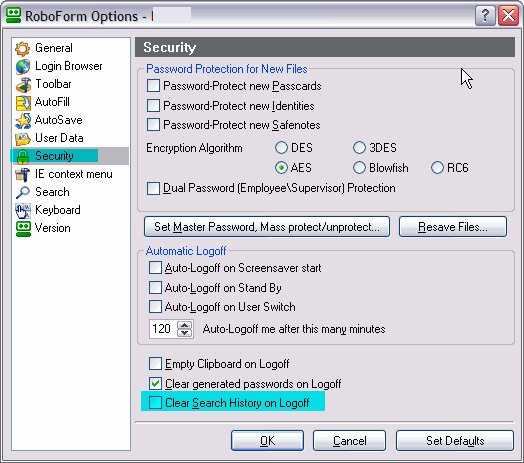
Robo Form 6.6.7 is the latest version, but it does not contain lots of changes, only Add option to clear Search History on Logoff (of course it might contain bug fixes and also some protection against Robo Form crack - that AI.Roboform.v6.6.6-TE it's a problem).

Robo Form clear search history screenshot

By default Robo Form will pop-up a window when a new version is detected, if the Notify about new versions option is checked.

Update robo form automatically

Worried about what is transmitted when Robo Form checks for a new version? Well according to their license agreement this is what they do (I've bolded the important part):
TRANSMISSION OF DATA IN AUTOUPDATE:
RoboForm checks Siber Systems server www.siber.com for its new version and security patches approximately once a day.
If it finds a version that is newer than the version that you have, RoboForm will offer you to upgrade.
The checking of new version results in technical data such as operating system and browser version and Registration Data to be transmitted to Siber server and stored on this server.
Customer hereby allows such transmissions to occur.

Registration Data is defined as Customer name, e-mail address and person/company who referred Customer (referrer) that Customer enters into the Registration Dialogue that appears when Customer runs RoboForm for the first time.


If you don't like this, you can disable the auto-update option and check for a new version manually. You can click on the button from the Version window (in the screenshot above) and on the web page that opens a JavaScript will "tell" Robo Form which is the latest version. It will prompt you with an window to download the latest version:

Robo Form version check

If you are unable to open that page:
- download the latest version of Robo Form 6.6.7 or of Pass 2 Go 6.6.7
- close your browser that has the Robo Form toolbar activated (if not the installer will prompt you to do so)
- install it over the old version, you do not have to uninstall old version first

3/14/2006

Robo Form 6.6.6 released

Robo Form 6.6.6 is the latest version of the well known freeware web form filler and password manager.

Robo Form 6.6.6

Main changes in this version:

  • Lower toolbar has chevron now, new chevron implementation. So what is a chevron? According to the definition is a shape of a mark, much like >>. I've made a screenshot with differences between the old lower toolbar (displayed first on the image) and the new lower toolbar (displayed at the bottom). Main differences are the arrows on the right but also the Search box is changed.

    Robo Form toolbar new chevron

  • Pass2go Loading Splash screen can be minimized now.

  • Do not show Lower toolbar in Full Screen (F11) mode.

  • Default action for Passcard file can be changed to Login.

    Default Robo Form is Login


Download the latest version here (approx. 2MB): Robo Form 6.6.6

Pass 2 Go is a Portable version of Robo Form that works directly from USB key, without a need to install it on computer. It gives users ultimate in portability, security and ease of use.
Download latest version from here: Pass 2 Go 6.6.6

3/08/2006

Old versions of Robo Form

The latest version of Robo Form is 6.6.5. It's a stable release and there should not be any problems in using it.

this is Robo Form, your password manager robot

However, this is one email I received today, from someone that wanted to know if he can revert to version 6.6.4 of Pass2Go (also known as Robo Form Portable):

"Do you have pass2go version 6.6.4? My info is not accessible through 6.6.5. If so could you send it to me."

What I figure it might have happened is that the data somehow got corrupted when switching to version 6.6.5. Anyway, I don't have Pass2Go 6.6.4 and I didn't find it on other websites, but on the main Robo Form website there are some older versions posted:

AiRoboForm 6.4.0
AiRoboForm Portable 6.4.0
AiRoboForm 6.1.9
AiRoboForm Portable 6.1.9
AiRoboForm 5.7.6

Now if you are installing Robo Form or Pass2Go for the first time, you should install the latest version: Robo Form 6.6.5 or Pass2Go 6.6.5 (direct link to setup)

I recommend the latest versions, because between the older version 6.4.0 and version 6.6.5 there are a lot of updates included (see list below):

Robo Form versions 6.6.0 to 6.6.5
* 6.6.5: Add option "Clear Generated Passwords on Logoff".
* 6.6.4: Change Login/GoFill Opens Site option to better reflect available browser choices.
* 6.6.3: Add option to block ALT+click and SHIFT+enter as combinations that force AutoSave.
* 6.6.0: By default create Robo Form data folder in "My Documents\My RoboForm Data".
* 6.6.0: Add option to install for All Windows Users.
* 6.6.0: Add customization for Matching Passcards button width.
* 6.6.0: Rename Robo Form Users to Profiles to distinguish them from Windows Users.

Robo Form versions 6.5.0 to 6.5.9
* Add search of contents of Passcards, Identities and Safenotes.
* Add encryption algorithms: AES, BlowFish, RC6.
* Dual password for passcard: 1st part allows Login only, 1st+2nd part allow full access.
* Add import of Internet Explorer passwords stored in AutoComplete.
* Add icons to Robo Form main menu.
* Show summary of the entire Identity in Summary tab of Identity Editor.
* Show tab instances in the left tree navigator in Identity.
* Add scroller and context menu to passcards in Matching Passcards mini-dialog.
* Build passcard cache at install time, not on first use.
* Revise AutoSave dialog to improve its usability.
* Revise AutoFill dialog to improve its usability.
* Better splash screen and optimized startup for Portable Robo Form.
* Redesign Portable Robo Form installer.
* Improve attachment and detachment of Portable RoboForm to browsers.
* Add support for U3 platform used on USB keys.
* Add Toolbar tab to Options dialog and put all toolbar options there.
* In Firefox toolbar do not show Close button.
* Increase max Most Recently Used limit from 9 to 26.
* Add arguments to Search strings, to allow for more complex searches.
* Add more searches to Search box: Google Site Search, Weather by Zip,
Stocks by Ticker, Reverse White Pages, Who Is, SEC Filings.
* Add decrypting AES to Robo Form for Palm.
* Add decrypting AES, BlowFish, RC6 to Robo Form for Pocket PC.

2/27/2006

Robo Form Tips and Tricks

If you're a Robo Form user then you already know its value and spare a lot of time by filling forms and logins automatically. But there are some options that allow you to get the best out of Robo Form, and it would be pitty not to use them.
Here are several tips on using Robo Form, that helped me improve its usability:

  1. Keyboard shortcuts. If you don't use them yet, you should start to do so. Of course you don't need all of them, but some turn out to be very useful for me, like: Fill & Submit (shortcut Alt+Z, it will fill the login details automatically and submit them), Save Forms (shortcut Alt+[, if you're filling a form/login for the first time you can use this shortcut to save the details if Robo Form doesn't ask you to do that) and My Identity (shortcut Alt + 1-9, which will fill the current form with the details saved in the identity that you choose).
    Robo Form keyboard shortcuts

  2. Set as Default option. It happens usually that for the same site you have several logins, for instance for Yahoo you have 4 email accounts and you saved the logins for them all, but you use one of them more often. In this case you can set that passcard to be the default one, so when you'll click on the matching passcards tab that login will be entered automatically. To set one passcard as default, visit the website that you have several entries for (Yahoo as an example), wait until the matching passcards appear, hover with the mouse, right click the one you want to save as default and select that option, just like you see in the image below. From now on whenever you'll click on that matching passcards button the default login will be entered.
    Set as default in Robo Form

  3. Passcard shortcut to desktop. If you have several passcards that you use more often you can create a shortcut for each of them on your desktop. However having to many it's not recommended, but 2-3 shorcuts to your desktop are useful. To create a shortcut just right click a passcard and select Add Shortcut To->Desktop (if you have enough space you can add it to the quick launch too).
    Passcard desktop shortcuts
    Once the shorcut is saved on your desktop, you can simply double click it and it will open the webpage, fill in the logins and submit it, so it acts like a bookmark too.
    Saved roboform desktop shortcut
    One more thing there would be the feature that I marked in the previous image, Fill Empty fields only. This is particullary useful when you're using a browser such as FireFox that saves too the information you fill in. Thus, there's no need to click on the Robo Form to fill a field that's already been filled.

  4. Fill and Submit as default action. A normal login page will have a Username (email address) field, a Password field and a Submit button. By default when you'll click on the matching passcard in Robo Form it will only fill your details in, and you will have to click on Submit. There is however an option in Robo Form that once enabled it will fill in and "click" on the Submit button.
    Fill and submit automatically

  5. Autofill web forms. By default when you'll get to a new web form Robo Form will not prompt any window to fill in anything. There is an option that you can check to have Robo Form prompt a window to fill in details from your identities and/or passcards to a new web form. This is useful with forms that are similar (like forum registrations, sweepstakes forms).
    Offer to autofill web forms

  6. Recently used passcards/safenotes. I have many passcards and safenotes, and usually in a day I'll use at most 8-10 logins (at home). So those are saved in a recently used list that you can easily access if you press the Logins/Safenotes button in the Robo Form toolbar. Instead of going through all the logins alphabetically you can just use the entry from the recently used list.
    Recently used passcards/safenotes

  7. Robo Form on USB. Pass-2-Go is the portable version of Robo Form. It acts just like RoboForm does, but you install it on a USB drive and use it from there. It lets you use someone else's PC and not have to remember your passwords because everything stays on the USB drive, so there's never a risk of anyone on the host PC seeing them, plus that if you lose the USB drive everything is encrypted and nobody will be able to read the data without the proper password. Plus that if you don't have a USB drive you can order one from Robo Form too.
    Pass-2-go

  8. Always on top. Don't blush yet, this is an option in Robo Form. I love Opera, but one of the things that I miss in it is the fact that I cannot use Robo Form, and let's face it that the Wand option in Opera is not very good. This is why I came up with a compromise, to use a Passcard editor window allways on top of all other windows when browsing with Opera. I can simply copy the username/password by clicking on the small icon in front of each field stored in Robo Form, and paste it in the Opera fields. It's annoying sometimes but you get used to it.
    Roboform used in Opera


These are the tips that I could think for now. If you have others, send them in to spuby2000@gmail.com

Download the latest version here (approx. 2MB): Robo Form 6.6.5
Download portable version of Robo Form from here: Pass 2 Go 6.6.5

2/15/2006

Robo Form Adapter for FireFox

Robo Form works with many browsers, and installing the Robo Form toolbar in those browsers resumes to installing a simple executable file. This tutorial focuses on the installation of the Robo Form adapter in FireFox, but for other browsers the principle is the same.

First of all, you need to download a file called Universal Adapter Installer. After the download finishes, run the Robo Form adapter setup by double clicking on it. A wizard will start guiding you through the installation process.

Robo Form Firefox adapter

If the setup detects the FireFox version that you have installed, it will be displayed in the These supported browsers are auto-detected on your computer field, as you can see in the image above (FireFox 1.5 was detected). If no browsers are detected, but you know exactly what you have installed, you can check the Manual Adapter Setup option.
A confirmation window will appear saying that you need to know exactly what browser you have installed otherwise the Robo Form toolbar will not work correctly.

Robo Form Adapter for FireFox

After you click Yes on the confirmation window, another one will appear and you will be able to select from a drop down box the browser that you are installing Robo Form for. This setup can be used for uninstallation of the Robo Form adapter, the difference being that in this step you would have to select the Uninstall button. However, to continue with the installation, select as action Install and then click Ok.

Robo Form adapter manual installation

After this step the actual installation will start. If you have FireFox opened, it will prompt you to install roboform-firefox-1.5.xpi. This is a FireFox extension that the Robo Form adapter setup copied in the temporary folder and executed. When the Install button is not greyed out (takes about 4 seconds) click it to complete the installation of the Robo Form extension.

Robo Form XPI

Meantime, the Robo Form adapter setup wizard is not closed, it pops up a window telling you what to do, complete the installation in browsers, close the browsers and click the Ok button of that window.

Robo adapter

After you clicked the Ok button in the last message from the adapter setup, open FireFox. If everything went well you will be able to see the Robo Form toolbar at the top of the browser.

FireFox Robo Form

And this is it. You have successfully installed the Robo Form toolbar in FireFox.

There is another way for doing this installation. You can open FireFox, click on Tools->Extensions and then on Get More Extensions. This will open a webpage where you can find lots of FireFox extensions. Do a search for Robo Form and you should be able to find the appropriate extension. Scroll down the page until you see the Install Now button and click on it.

Install Robo Form

After you click on that, a progress window will show you how the extension is being downloaded.

Download Robo Form extension

After that is finished, you will be able to install the extension and that's it. Restart FireFox to have the Robo Form toolbar displayed.

Download the latest version here (approx. 2MB): Robo Form 6.6.5
Download portable version of Robo Form from here: Pass 2 Go 6.6.5
Download FireFox: Fire Fox 1.5.0.1

2/10/2006

RoboForm discount code

A $10 discount code is available for ordering Robo Form Pro or other products from Siber System. The discount is valid only if your income for 2005 was less than $20,000 (so for instance if you had a monthly income of up to $1,666 you will qualify for the discount). When you are completing the purchase order with this discount code, you certify the fact that your declaration is valid and if you will be asked to send papers to demonstrate this you are obligated to.

This is a step by step process to order Robo Form Pro with a discount code (you can order other products too and still get the $10 discount from the total amount).
First go to the Robo Form buy now page.

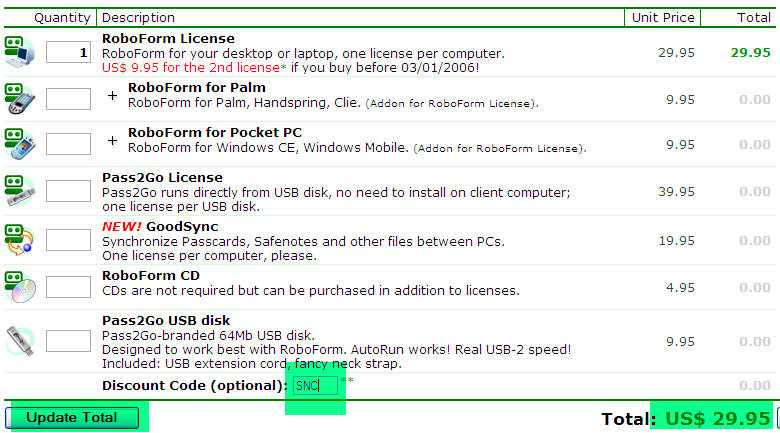
Robo Form order page

Automatically 1 license of Robo Form Pro will be added to your shopping cart. Do not click on Continue yet. Go to the Discount Code (optional) field that's at the bottom of the ordering page and enter the discount code SNC just like you see on the image above. The price now it's still $29.95, but if you click on the Update button you should see the price dropping to $19.95.

Robo Form Discount

The discount of $10 should be now displayed as -10.00. After you see that, click on Continue to go to the next step.

Pay Robo Form Pro

Here you can select a payment method (credit card, paypal transfer, check) and review your order (see again if the $10.00 is displayed). After that click on Checkout to enter your payment details and complete the order.

Checkout Robo form

This final step completes when you enter the correct details and click on Submit.
If you want to test Robo Form before you buy it download it here: Robo Form 6.6.5
It also has a portable solution: Pass 2 Go 6.6.5

[update]
I've found 2 more Robo Form coupon codes. One gives a discount of $3 and the other a discount for $10 (for this one you don't need to prove that you have a low income).

For $3 off, use the coupon code CORTS and when you click on Update you should see the following text: SW User Group Conference discount is applied: -3.00
RoboForm coupon code

To get $10 off, use the coupon code INP and when you click on Update make sure the following text is displayed: InfoPackets discount is applied: -10.00
Roboform discount code
[Update] There's a new roboform coupon code as mentioned in the comments, if you use NVER1 you will get 20% off - good to hear about this new roboform discount
[Update] Other Robo Form discount codes:
GOOG1 - 20% discount off your Roboform purchase (via Google advertising)
STRV4 - 20% discount off your Roboform purchase
XMAS1 - 20% discount off your Roboform purchase
SDGCS - 20% discount off GoodSync Professional orders

2/08/2006

Robo Form 6.6.5 and AutoSave tip

Robo Form 6.6.5 was released today. On their news section there is only one mention regarding changes in this version: Added option Clear Generated Passwords on Logoff. Probably they also fixed a couple of minor bugs, beside the change mentioned above.

Robo Form banner

Download the latest version here (approx. 2MB): Robo Form 6.6.5
Download portable version of Robo Form from here: Pass 2 Go 6.6.5

The Robo Form AutoSave dialog appears each time when you visit a website for the first time and enter some login detail. It will prompt if you want to save that login to your passcards for later use. You can either save or cancel it (if you cancel you will still continue to the login page).

Robo Form cannot save passcard

However, if you are creating a new account on a website, ususally these forms contain a Password and Repeat Password field. Robo Form will detect that and will tell you that it cannot save the login and in order to have a passcard for this stored you will need to finish creating the account, logout from that website and re-login. When you re-login you will click on the Save button for the AutoSave window.
RoboForm: Learn more...